Connected operations for event businesses

The intelligence to find answers. The tools to run the show.

ShowDesk connects your projects, people, equipment, quotes, and client collaboration. Research product specs, ask questions about saved information, and manage the operational details behind every event in one workspace.

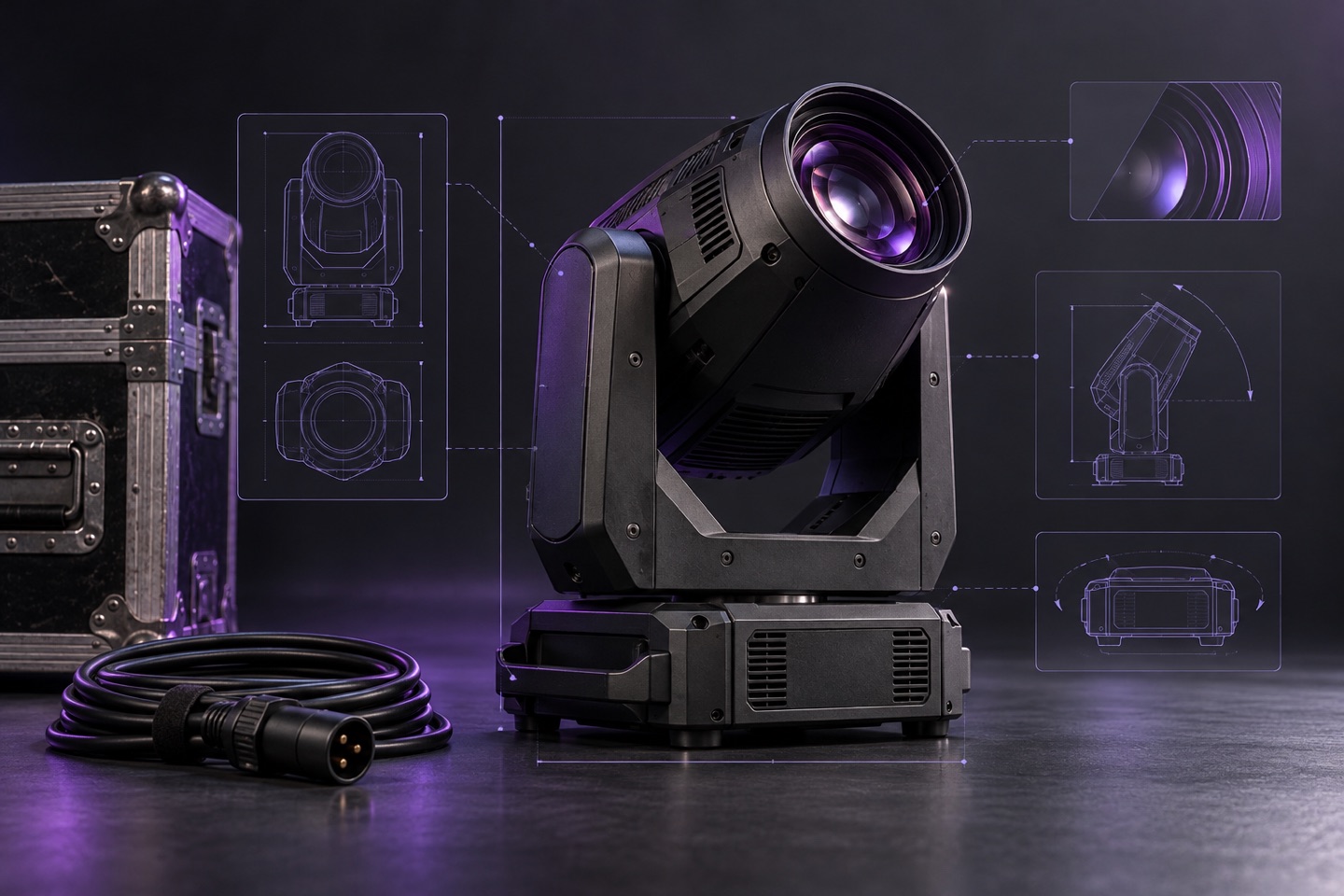
Stage fixture with violet technical linework illustrating equipment research.
Research the gear. Connect the details.

Less searching. More useful information.

Put AI to work on two familiar time sinks: finding equipment specifications and finding answers across your company's saved information. Review the sources and stay in control of what becomes part of your records.

Research equipment from its manufacturer and model

Enter an equipment title that includes the manufacturer and model. ShowDesk researches product information online without requiring a manufacturer's URL, then presents suggestions with source links.

  • Product descriptions, dimensions, and weight.
  • Electrical consumption and voltage requirements.
  • Power connections and circuit notes.
  1. Research. Start with the equipment title.
  2. Review. Check the product match, suggestions, and supporting sources.
  3. Apply. Choose the fields to save. Applied research retains its sources and research date.

Build useful equipment records without copying specifications from one product page after another.
Ask questions about your business

Use the top search bar for ordinary record searches or questions in everyday language. Find projects, people, entities, locations, resources, actions, and document records, with answers that link back to supporting records.

Questions you can bring to ShowDesk

  • “What time do we have access to the venue for this project?”
  • “Which actions are still open for this event?”
  • “What are the recorded power requirements for this equipment?”
  • “Summarize the supporting documents for this project.”

Questions asked from a project can use that project's context and relevant supported attachments. AI answers help you understand your information; they do not independently change project records.

Ask ShowDesk and AI equipment research are included in every plan. These tools share your company's configured allowance within the base subscription. You do not need your own AI API key or a plan upgrade to use these AI tools. If your company uses up its included allowance, contact ShowDesk about additional AI resources.

From finding information to reasoning about operations.

Equipment research and source-linked business answers are existing product capabilities. Our proposed R&D explores uncertainty-aware operational reasoning: reconciling incomplete or conflicting information, testing feasibility against operational constraints, and producing plans that can be independently verified.

These capabilities remain research objectives whose technical feasibility has yet to be established.

Explore our technology and research direction

Keep the event and everyone behind it connected.

Event work spans clients, venues, vendors, and production teams. ShowDesk keeps those relationships tied to the project while preserving the details that make each person and organization different.

A project record built for event operations

Move projects through configurable pipeline stages with their contacts, team assignments, quotes, documents, actions, meetings, and communication history connected to the same record.

  • Record functional event timing separately from the times your team can access or work at the location.
  • Associate a project with a person's entity or handle it as a personal project.
  • Open contact and location records directly from the project.
  • Capture each person's assignment on the project so their role is clear in context.

Keep the event schedule, working relationships, and follow-through together as plans develop.

People and Entities, with the right details for each relationship

A person may work with several businesses. ShowDesk separates People from Entities so one person can belong to multiple organizations, each with its own title and work contact information.

  • Save work email, work cell, office number and extension, and mailing address for each entity relationship.
  • Keep personal email, personal cell, personal address, and personal billing address separate.
  • Store a separate messaging email for addresses used by platforms such as The Knot.
  • Use entities for client, location, partner, and vendor relationships, including entities with multiple roles.

Directories show linked-record counts and past and upcoming project counts. Search existing contacts or create a missing person or entity while creating a project, without abandoning the workflow.

Know what you own and how it fits together.

Organize the resources you offer, the physical assets behind them, and the packages your team prepares. Equipment information stays connected to its condition, location, accessories, and media.

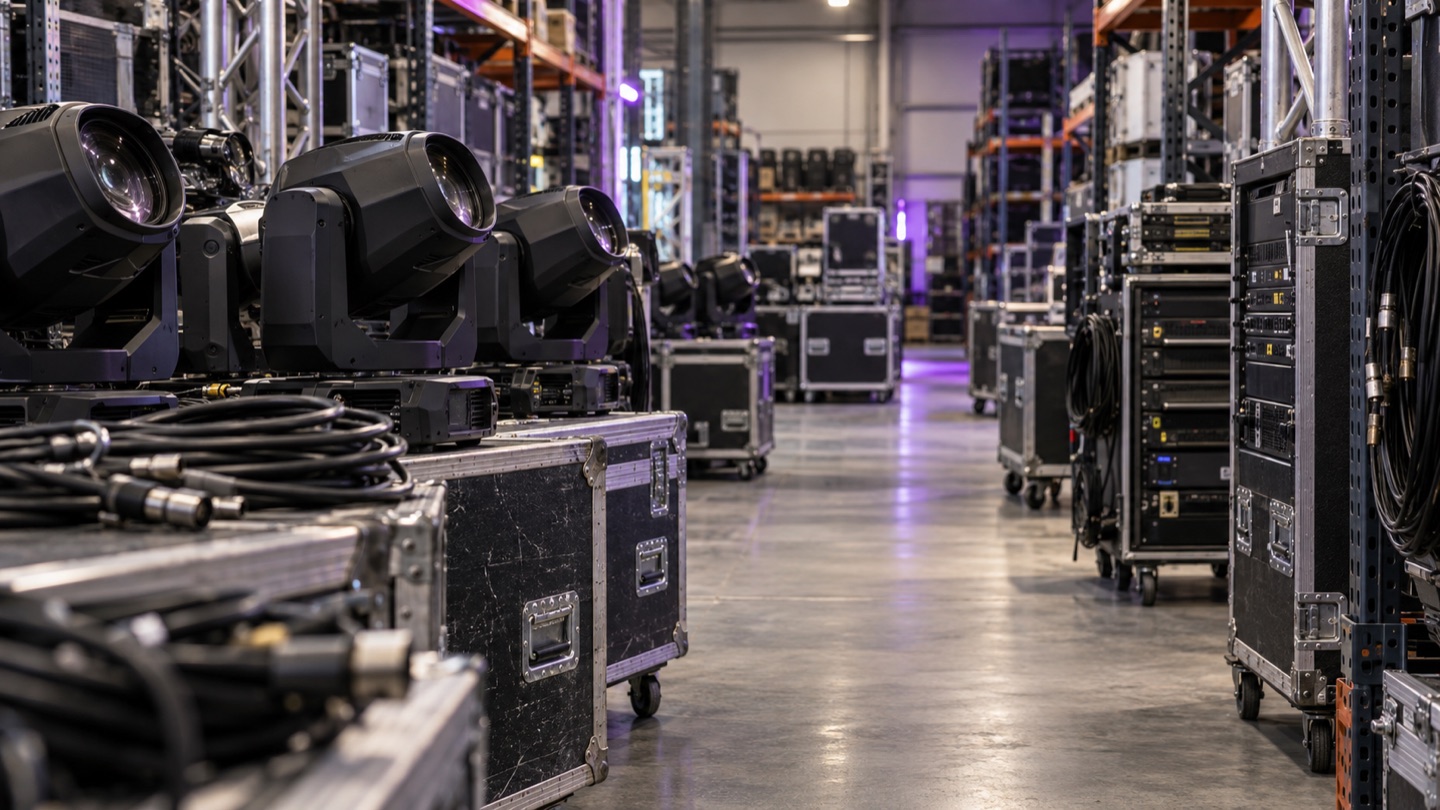
Equipment rental warehouse with individual fixtures, flight cases, racks, and cables.

Separate the catalog item from each physical asset

Your equipment catalog describes the item you offer. Individual asset records describe each physical unit you own, with serial numbers, recorded location and condition, purchase details, warranty and insurance information, and maintenance history.

  • See total, active, and inactive quantities in inventory tables.
  • Filter by warehouse or another storage location to inspect stock there.
  • Organize resources into departments and categories.
  • Add custom fields for information specific to your business.

Build kits and packages around their components

Combine resources into kits and packages, group related offerings through cross-sell relationships, and associate individual assets with items such as cases, covers, and accessories.

Kit and package quantities reflect complete sets that can be assembled from the included physical inventory. A location filter checks the components at that location. These counts describe component sets; they do not guarantee booking availability for an event date.

Keep the way you offer equipment connected to the way your team stores and prepares it.

Product media and a defined cost-based price suggestion

Add a photo gallery and multiple video links to a resource record so useful product references stay with the equipment. For eligible individual assets with complete purchase-cost information, ShowDesk can also suggest a catalog price using 10% of the lowest complete individual asset cost, including its associated items.

This is a defined cost calculation, separate from AI research, giving your team a consistent reference to review.

Build the proposal from the details behind the job.

Quote inventory, labor, kits, and packages using the same resource records your team manages. Keep the proposal with its project, from the first draft through the version you publish for review.

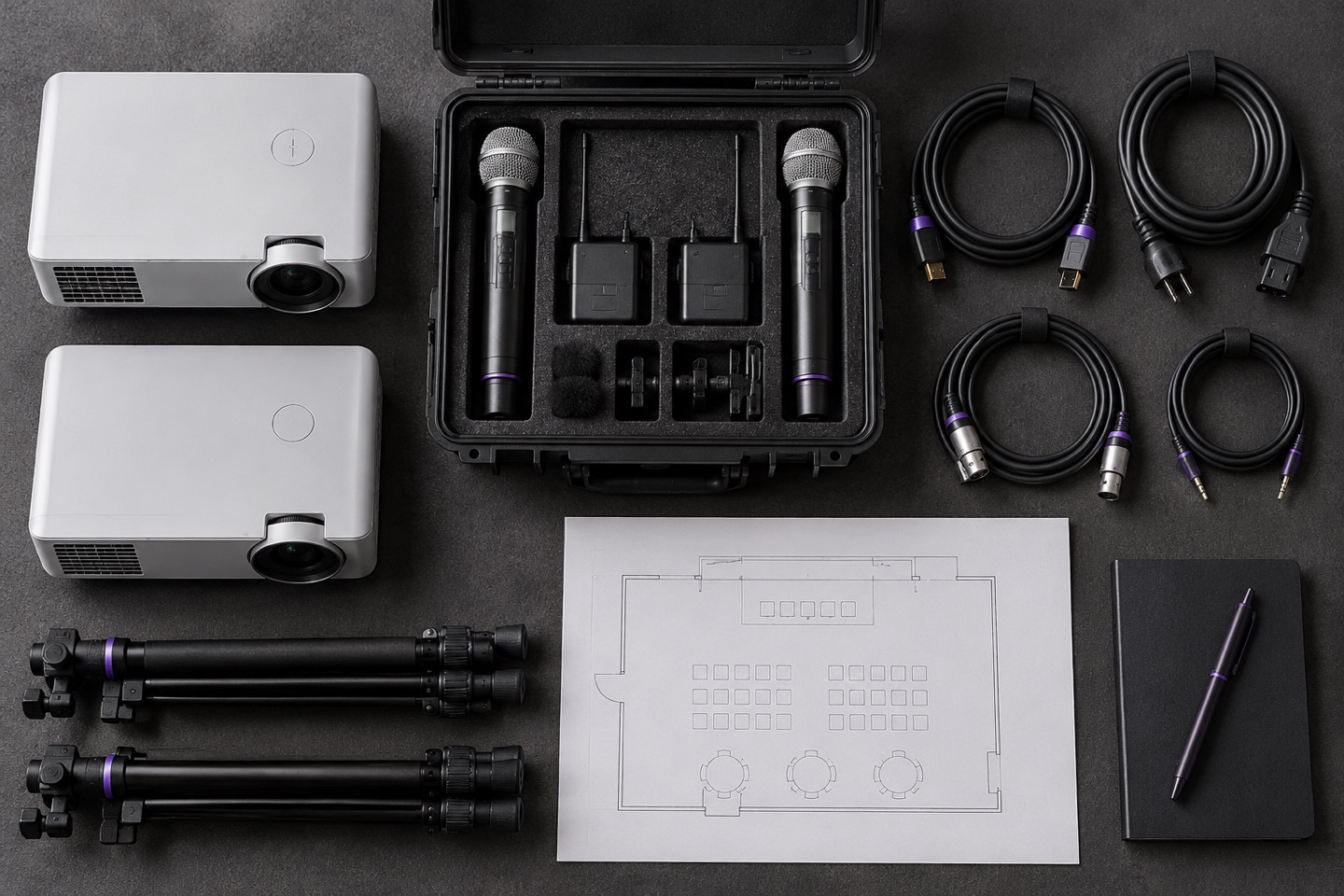
Event equipment arranged for selecting the resources behind a project quote.

Make scope and pricing easy to follow

  • Organize quotes into sections with descriptions, quantities, and rates.
  • Account for discounts and estimated tax.
  • See totals update as quote content changes.
  • Save quotes to the project and publish them for authorized client or partner portal users.

Bring operational requirements into view

Recorded resource specifications support summaries of power, weight, and transport space. Review those requirements alongside your quoted resources to inform preparation and planning.

The equipment data you maintain becomes useful beyond the catalog, connecting the proposal to the physical work your team needs to deliver.

Share the right details. Keep control of changes.

Give clients and partners a place to review project information and communicate with your team, while keeping documents and change requests attached to the work they concern.

Event planning team reviewing venue plans and materials together.

Project access with team approval built in

Grant people client or partner portal access to specific projects. A person can have more than one authorized relationship, with shared information governed by their permissions.

  • View shared project information and published quotes.
  • Message the project team within the portal.
  • Request timing, location, service, or other project changes.

Your team reviews requests before changes take effect. Supported timing and location changes can be approved and applied; quote revisions remain under your team's control.

Supporting files, saved in project context

Upload documents from a project or through the top bar. The top bar also supports drag-and-drop, pasted images, and screen capture. Review the files and choose their project before saving.

  • Keep original files with authenticated downloads.
  • Work with common PDF, Office, text, spreadsheet, and image formats.
  • Use relevant supported attachments in AI questions.

Keep the supporting information close to the project record your team already uses.

Support the way your business is organized.

Bring distinct brands into a connected company account, review resource information across your operation, and reuse the steps your projects depend on.

Multiple brands and authorized account contexts

Manage brands with their own names, logos, contact information, addresses, websites, and descriptions. Your initial brand starts with saved company information, and a default brand can be selected for new projects.

The account menu lets people move between the company and portal contexts they are authorized to use. Verified linked email addresses support people who work across different entities.

Reports, imports, and reusable project steps

  • Review resource reports for catalogs, individual assets, associated items, kits, packages, components, and cross-sell relationships.
  • Filter reports and export CSV files for further review.
  • Import resources from CSV, TSV, or XLSX files with column mapping.
  • Reuse templates for actions, meetings, and client touchpoints for recurring project work.
  • Create tasks through action automations triggered when projects or project clients are added.

Reduce repetitive setup and make the operational information you maintain easier to review and use.

How the connected features work.

Can ShowDesk research equipment specifications?
Yes. Enter the manufacturer and model to research descriptions, dimensions, weight, electrical requirements, and connections. Review the matched product and sources, then choose which suggested fields to apply. Applied research retains its sources and research date.
What is the difference between an inventory item and an asset?
An inventory item describes a product in your catalog. Individual assets represent the physical units behind that item, with their own serial numbers, locations, condition, purchase details, warranties, and maintenance history.
Can clients review quotes and request project changes?
Authorized client and partner portal users can review published quotes, message the team, and request changes on shared projects. Your team reviews requests before supported changes take effect and manages quote revisions.

Bring your real workflow to a ShowDesk tour.

Explore how your projects, relationships, resources, and quotes fit together with AI assistance built around the information your team uses.

Select Create account at app.showdesk.com to submit your contact and business details. We'll follow up to schedule a tour as tour capacity becomes available. Registration does not start a subscription or grant immediate workspace access. Existing customers can sign in.