Connected operations for touring productions

Every date has its own details. Keep them connected.

The venue changes. The local contacts change. Your team still needs a clear view of the work. ShowDesk connects project details, people, equipment, quotes, documents, and AI assistance in an advanced CRM built for event businesses.

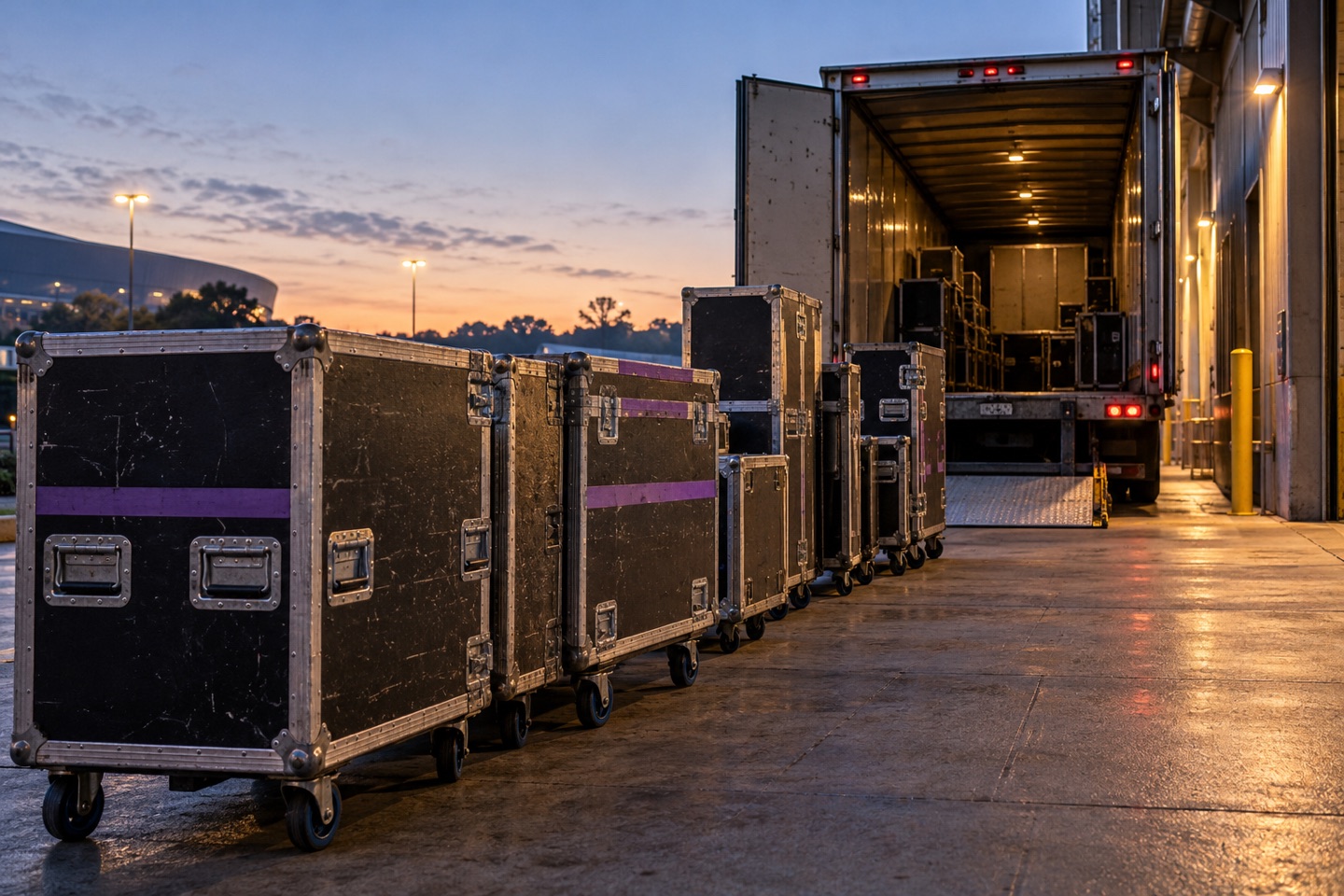
Touring equipment cases beside a truck at a venue loading dock.
Built for every detail behind the show.

Know where you’re going, when you can work, and who to call.

Treat each date as a connected project. Keep venue-specific information close to the client, promoter, partner, and team relationships that make it useful.

Show time and access time, recorded separately

A performance time does not tell the crew when they can enter the building. ShowDesk distinguishes event timing from access timing so both stay visible in the project’s details. Open the location record directly from the project when you need more context.

The right details for the right relationship

Separate People from Entities. A production contact can belong to more than one organization, with different work emails, titles, and phone numbers for each relationship. Project assignments capture what that person does on this date.

Supporting documents with the project

Keep venue information, technical documents, plans, and other files attached to the project they support. Upload from the project or the top bar, review the files before saving, and keep the originals available through authenticated downloads.

A repeatable way to prepare

Move projects through configurable pipeline stages and keep actions, meetings, assignments, quotes, and communication history together. Reusable templates for actions, meetings, and client touchpoints support a consistent starting point for the next date.

Connect the catalog to the physical assets and the quote.

Keep resource information in one place so the people preparing proposals and the people reviewing equipment work from connected records.

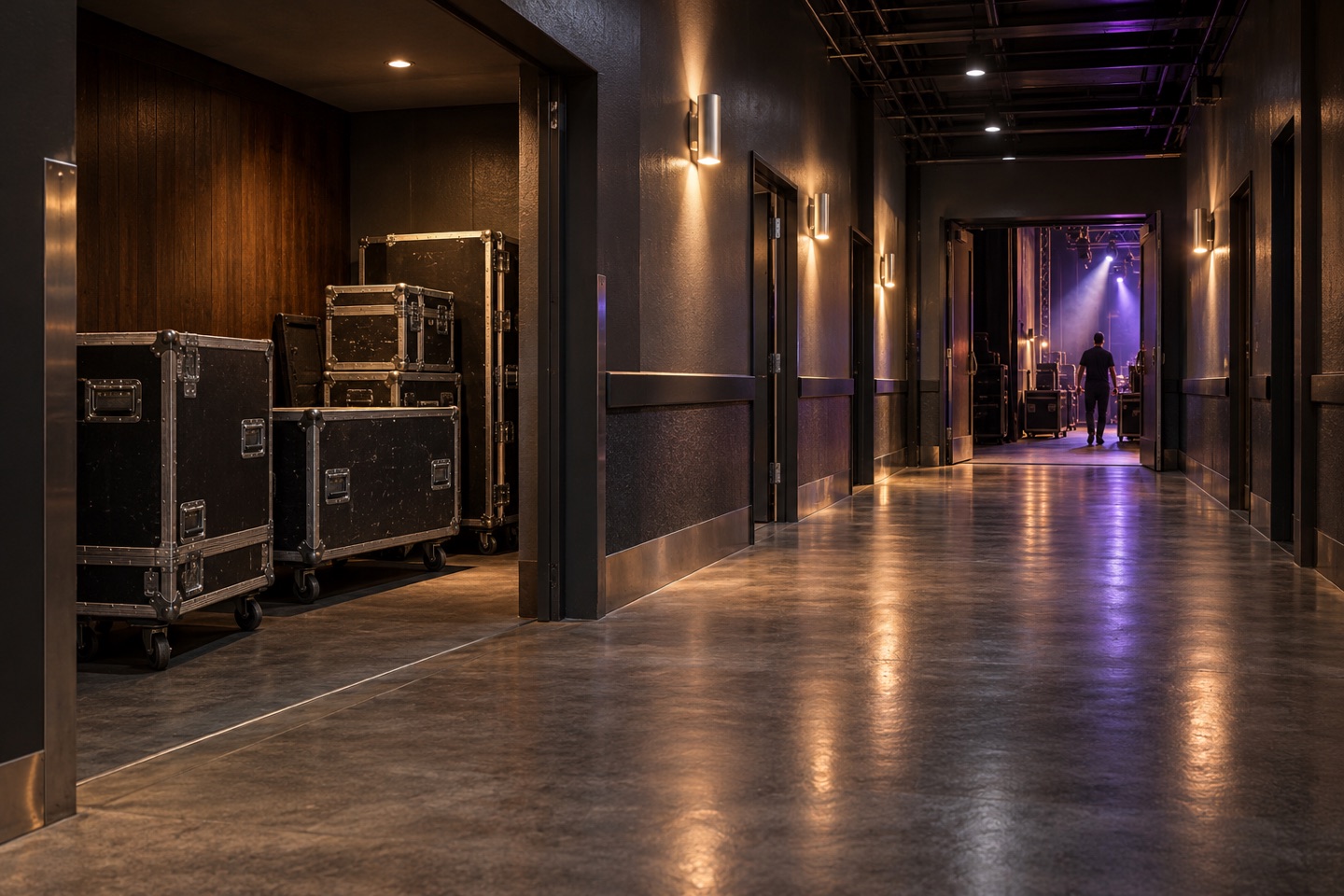
Venue service corridor with equipment cases leading toward stage access.

Track individual equipment

Store serial numbers, location, condition, purchase details, warranty and insurance information, and maintenance history for individual assets. Inspect total, active, and inactive quantities, with filters for a warehouse or other storage location.

Organize the way your gear works

Build kits and packages from component resources. Complete-set quantities reflect their included physical inventory and can be filtered by location. Associate cases, covers, and accessories with individual assets.

Build project quotes from resources

Use inventory, labor, kits, and packages in quote sections with quantities, rates, discounts, and estimated tax. Recorded resource specifications can also support summaries of power, weight, and transport space.

Ask about the project you’re working on.

Use ordinary record search and AI questions from the same top search bar. Questions from a project can include that project’s context, with answers linked to supporting records.

Find the recorded answer

  • “What time do we have access to the venue for this project?”
  • “Which actions are still open for this event?”
  • “Summarize the supporting documents for this project.”

Relevant supported attachments can inform the answer. AI assists your review and does not independently change project records.

Research product specifications

Enter a manufacturer and model in an equipment title to research descriptions, dimensions, weight, and electrical requirements online. Review the matched product and source links, then select the fields to apply. Applied research keeps its sources and research date for later reference.

Give the right people access to the right project.

A promoter, venue partner, or client may be involved in several projects and relationships. Portal access stays tied to what that person is authorized to see.

A shared place to coordinate

Authorized client and partner portal users can review shared project information, see published quotes, and message the project team according to their permissions. Keep that communication connected to the work it concerns.

Changes with team review

Portal users can request timing, location, service, or other project changes. Your team reviews those requests before changes take effect. Supported timing and location requests can be approved and applied; quote revisions remain under your team’s control.

Prepare a date with the local details in view.

An illustrative touring workflow using connected ShowDesk records.

  1. Create the project and relationships

    Add the date, client, venue, and local contacts. Select existing people and entities or create missing records during project setup. Assign each person’s role for this project.

  2. Capture the working details

    Record the event and access times separately. Attach venue documents, add preparation actions, and use templates for work that repeats across dates.

  3. Build and share the scope

    Create the quote using your catalog, labor, kits, and packages. Publish it for authorized portal users, then review incoming requests with the project context alongside them.

  4. Review what remains

    Check open actions and supporting records as the date approaches. Use project-context questions to help find recorded answers, then follow the linked sources for the details.

Keep the details behind each date connected.

How does ShowDesk organize touring production dates?
Treat each date as a project with its own venue, client and production contacts, event timing, access timing, resource quotes, documents, actions, and meetings. Keep the information for each date connected to the people responsible for it.
Can touring teams record venue access separately from event times?
Yes. Record event and access timing separately, link the venue and relevant contacts, and attach supporting venue information or production plans to the project.
Can clients and partners collaborate on a touring project?
Authorized portal users can review shared project details and published quotes, message the team, and request changes. Your team reviews requests before supported changes take effect. Explore project portals.

Bring the details of your next production.

Explore projects, venue relationships, resources, and collaboration through the lens of your touring work.

Open app.showdesk.com and select Create account to request a tour. We’ll follow up as tour capacity becomes available. Registration does not grant workspace access. Existing customers can still sign in.